

TeXeTeScribe note taking app obtains a proper Search functionality
One sunny November day I was standing in a line to make some changes in my papers. I was sound because all the information I might need was safely stored in a TXT file on the microSD card of my smartphone thanks to the TeXeTeScribe app.
But when my turn arrived and the clerk requested that information, I could not locate it quickly: the file was last edited an extremely long time ago and since then it got buried under a massive pile of new notes. So it took me a minute of scrolling to the file I needed. Immediately after the papers were updated, I opened my 7-inch laptop and started adding the search functionality into the app.
The problem was that TeXeTeScribe had become a victim of its own success. With a momentary start and only one click required to start writing, the app allowed capturing any thought. From a dream while your brain still sleeps to official information, highlights, briefs, etc.
A few dozen TXT files are perfectly manageable, a required file could be quickly located manually. And even a hundred files can be handled if one has a reasonably functional memory. But after 10+ years of collecting notes my digital warehouse contains multiple hundreds of files with some of them containing thousands of words. Even simple scrolling became time consuming, that’s if one remembers the file he needs to scroll to.
The objective seemed straightforward: search through the content of TXT files in the currently selected folder. My memory is not perfect, so I may only partially remember the content I need, therefore the app should support wildcard search. I may not even remember if I’m looking for a file with that name or a word within a file, so app has to look up both in filenames and their contents.
When a match found we may simply show the file where the match occurs. But that is anti-user friendly UX in my opinion - the user should be able to quickly navigate to the matched text occurrence in the file. I actually thought that the latter requirement would be overly complicated to code, but turned out Android’s default class android.widget.EditText already has this functionality.
Naturally, there was no reason to build a miniature Google Search inside a text editor. The application needed a straightforward mechanism that would examine the files, identify matching words, and present the results in a form that would allow immediate access to the required information. As usual: no database, no indexing server, capable of killing the data robustness and minimalism of the app.
The search button joins the crew
The first step was adding a dedicated search button to the app’s main screen UI, conveniently positioned between the existing refresh and new-file buttons.
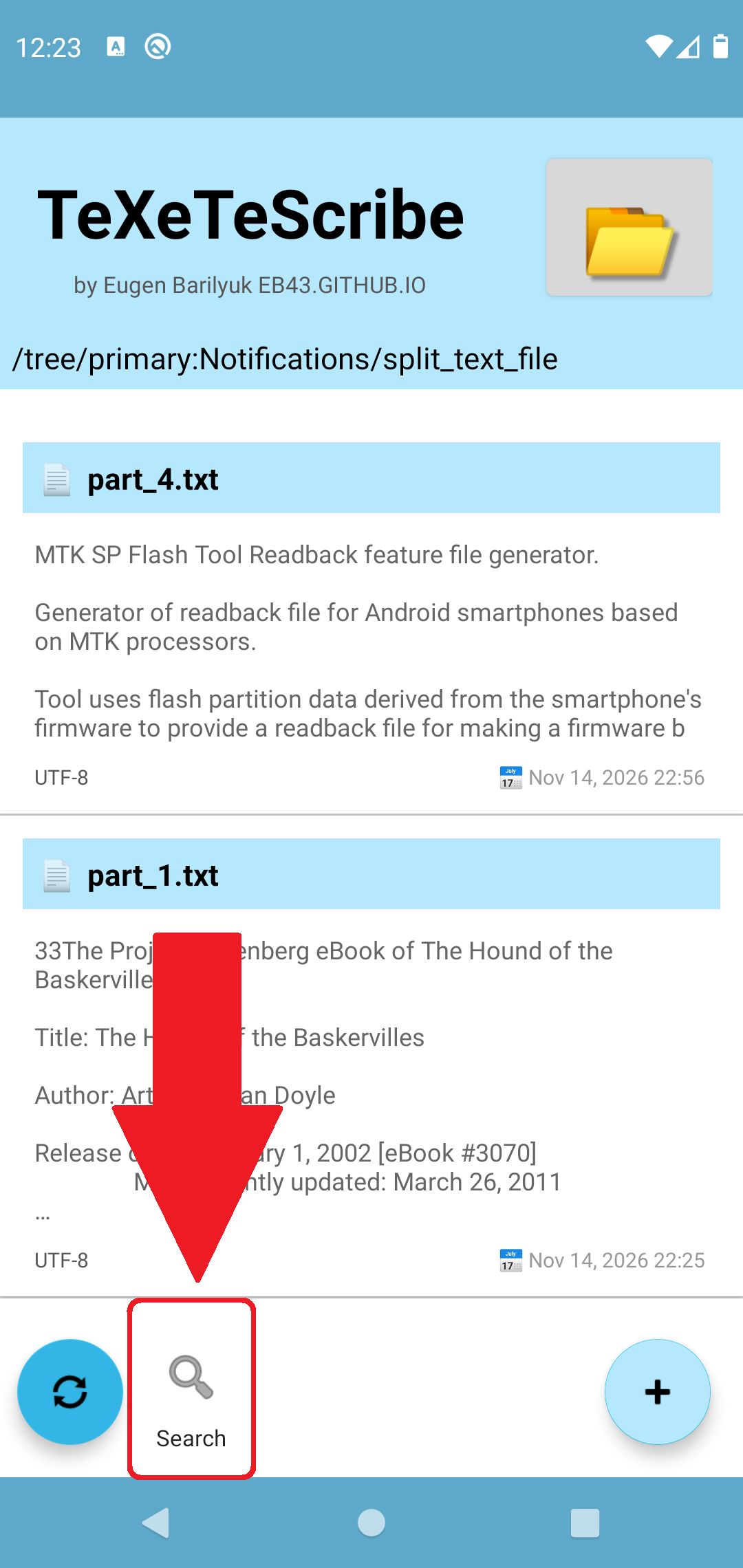
Pressing the button opens a dialog containing an UI to provide the best UX for users of different Android knowledge level. This dialog has a field for search query, a short explanation of wildcard usage with examples (not every Android user ma, a status message, and an empty block of space for list of results. Below that the necessary controls are located: to start a search, stop an active operation, begin another search, or close the dialog.
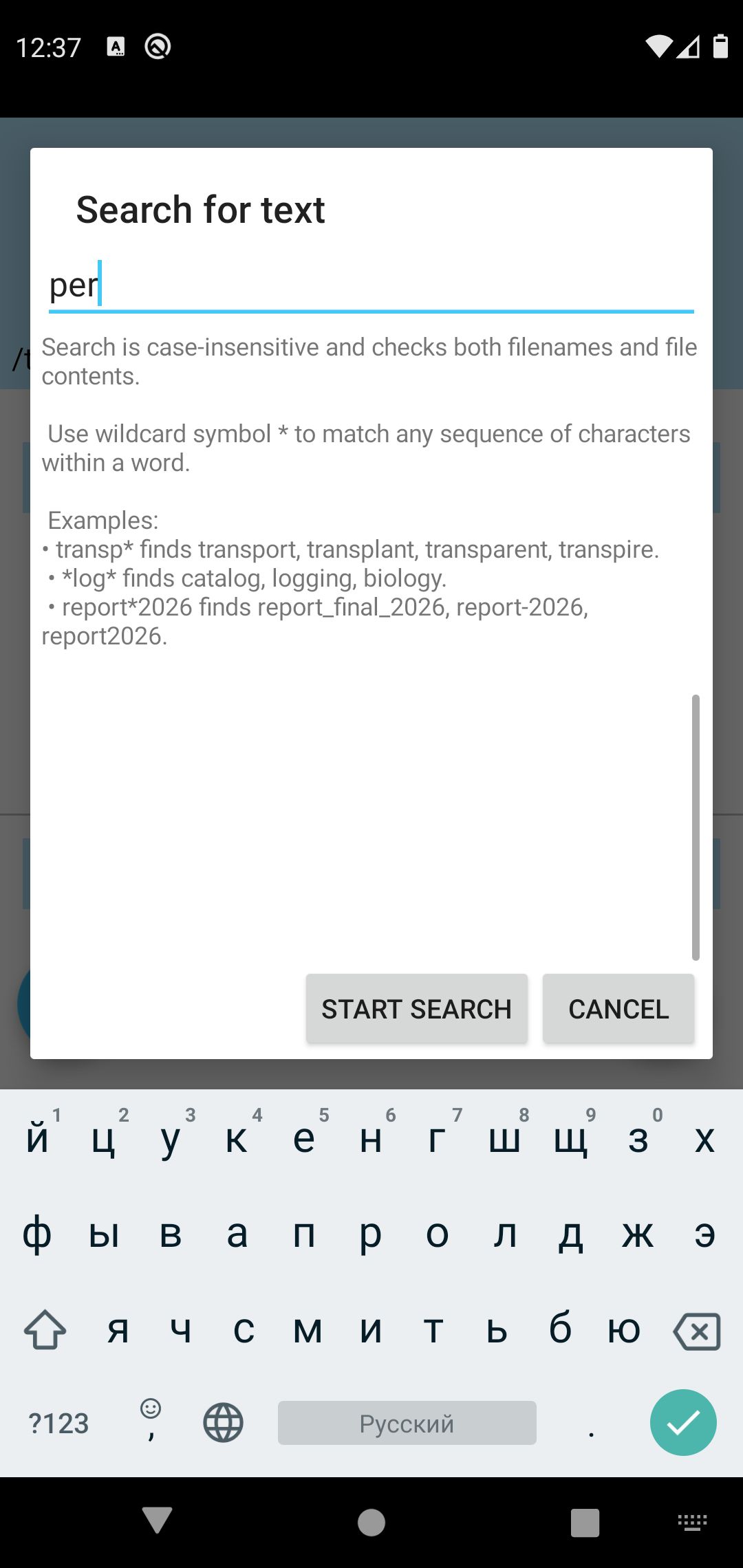
In order to accommodate the basic level users the search dialog contains an example of wildcard usage. Not every user may be familiar with the concept of a wildcard. So, a brief user guide is provided, covering prominent use cases:
Use wildcard symbol * to match any sequence of characters within a word.

transp* finds transport, transplant, transparent, transpire.
*log* finds catalog, logging, biology.
report*2026 finds report_final_2026, report-2026, report2026.
There is nothing particularly revolutionary about an input field and a couple of buttons. However, to produce a good UI/UX some default Android options had to be scraped and replaced by self-written analog. Specifically, a vertical scroll bar was reinvented, later it would be provided why.
The search dialog is designed to remain open while the search operation is running. Results appear as they are discovered, allowing the user to start inspecting available matches without waiting for search process to fully end after every single document in the folder was examined.
If the search output already contains what user wants or the results turn out to be too broad, the search operation can be interrupted. In the former case, the existing results remain available for interaction.
After completion, another search can be started without closing and reopening the search dialog. The button Start search behaves accordingly to the current state: after search was fired, this button transforms into Stop search button. After search scan is completed, this button becomes a New search button. The Cancel button obviously, at least I hope so, closes the search dialog
Wildcards: compensate a lousy human memory
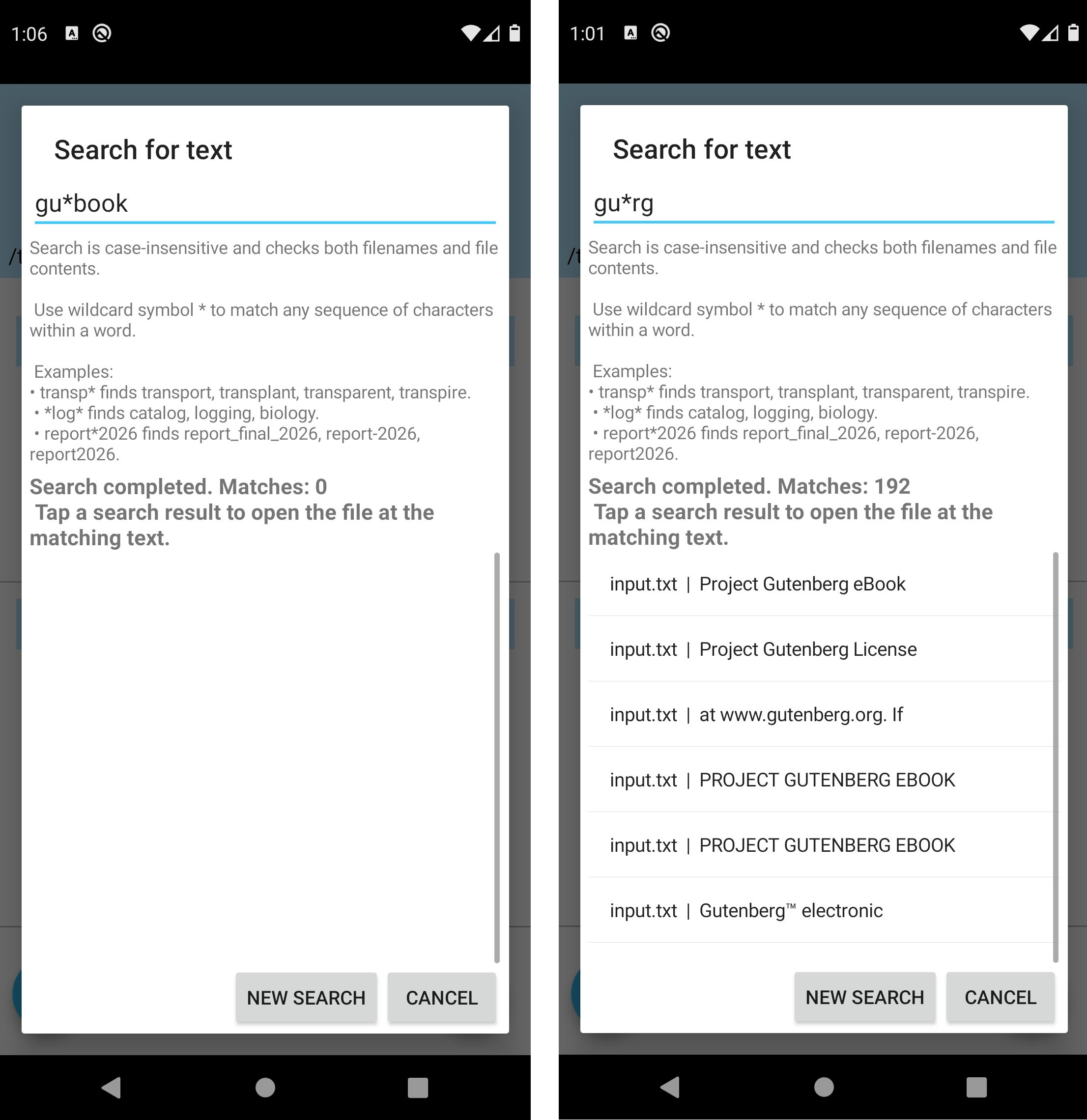
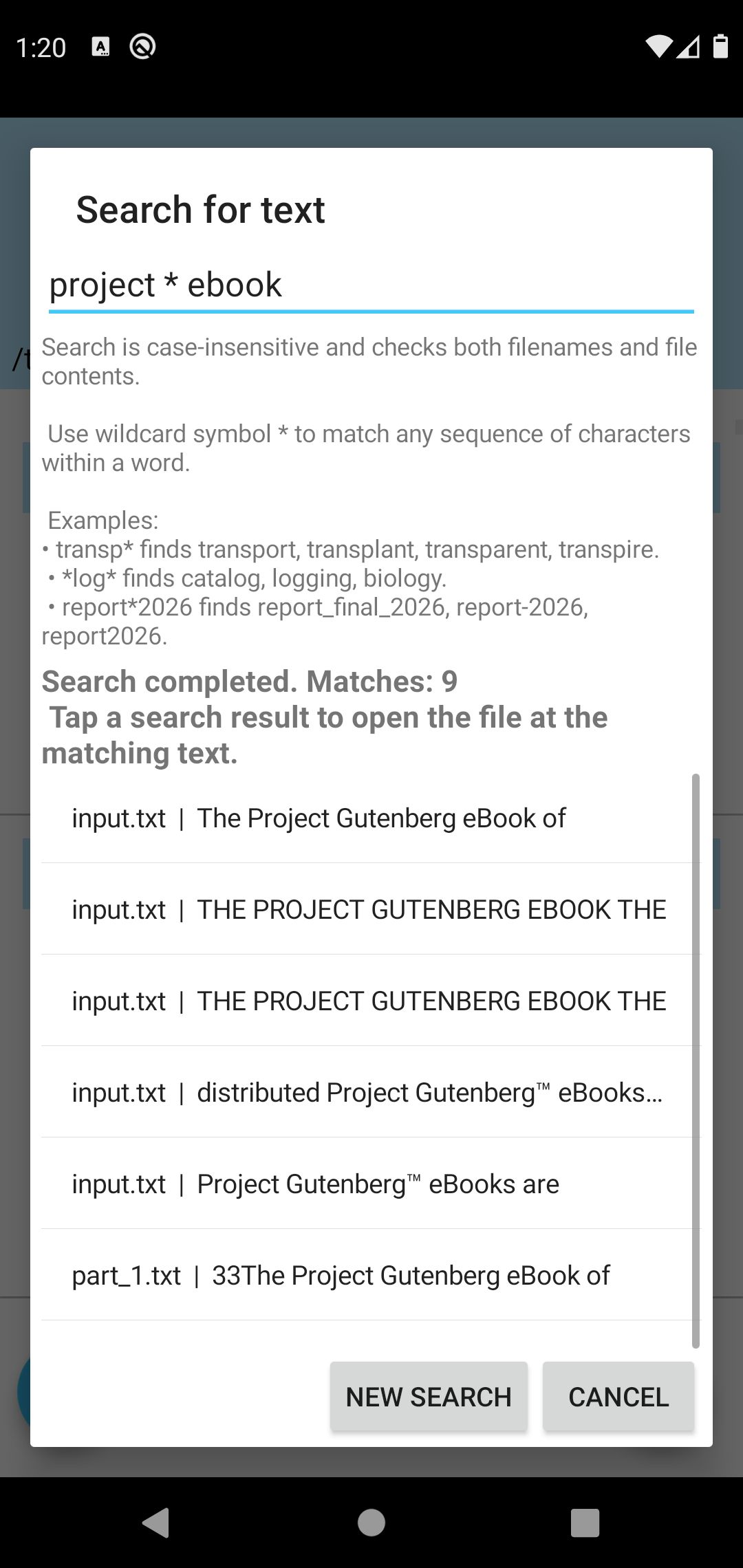
The most useful addition for a search query is support for the asterisk character (*). From the dawn of the computer era this symbol got accepted as a representation for a variable sequence of characters. The TeXeTeScribe app processes a wildcard for any character sequence within one word. So, for example, typing a search query “gu*book” to find the phrase “Gutenberg eBook” produces no results. However, searching for “gu*rg” results in matches with the word “Gutenberg”.
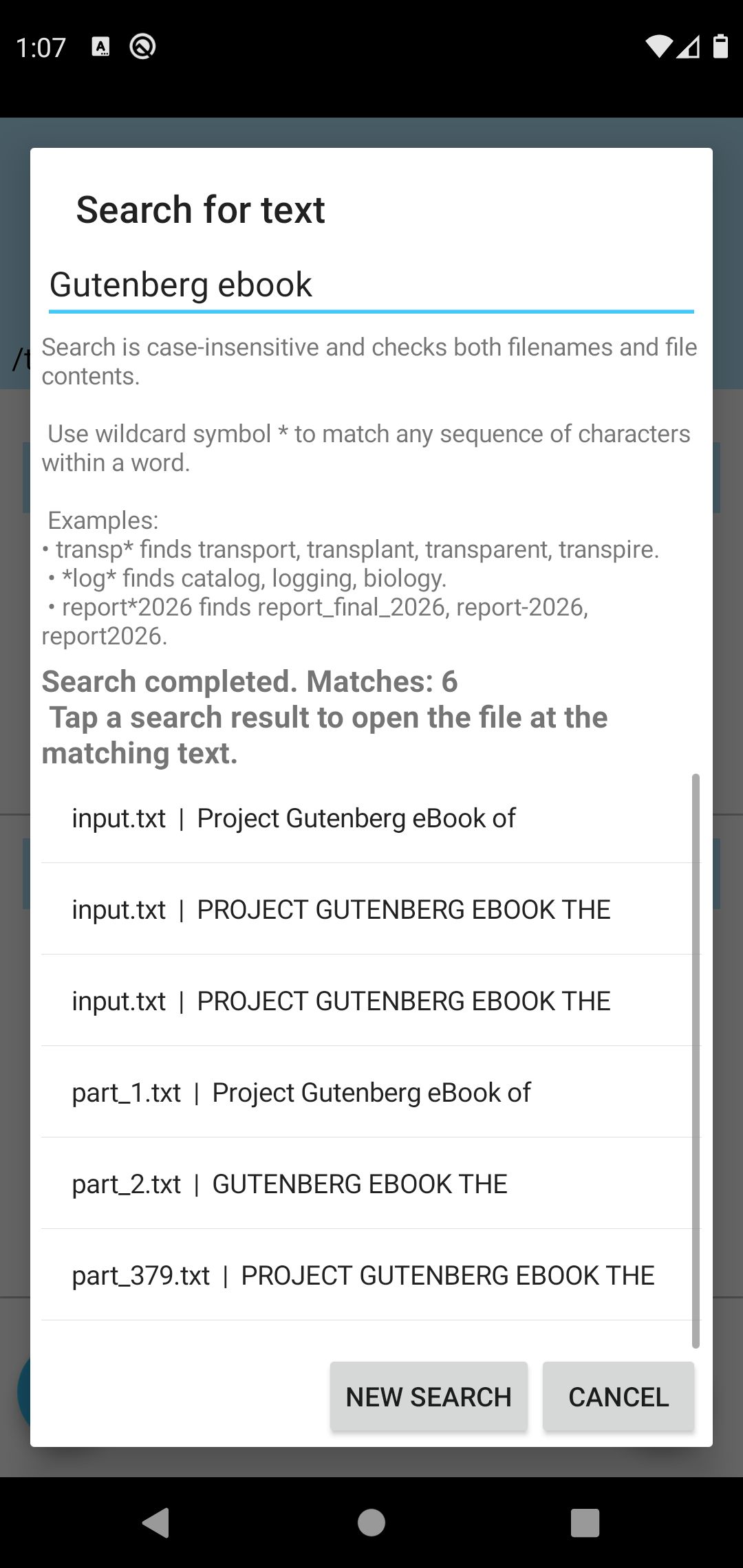
But this does not mean the user is not capable to use multiple word search query. The search “Gutenberg ebook” returns all existing matches inside TXT files within the selected folder:
Wildcard matching is intended to find variations within individual words, rather than treating the entire document as one enormous character sequence. This keeps expressions such as transp* predictable and prevents a wildcard from swallowing unrelated text across several sentences. A standalone asterisk can also be used to match individual words, although such a query is naturally capable of producing a rather impressive quantity of results.
The search is also case-insensitive. Search queries Battery, battery, and BATTERY produce the same result, which is more user friendly UX. There is little point in forcing users to remember whether they happened to press Shift while writing a note several years ago. In any case, it is better to have several results with some of them could be filtered out rather than having no match and guessing why that happened.
How TeXeTeScribe searches inside the files
The app tries its best to offload the pressure off the user memory, so, in addition to search within the file’s content, the app also searches within a file name.
Searching filenames is relatively uncomplicated. The application obtains the names of TXT files in the selected folder and checks them against the entered search query pattern. Searching document contents is a different matter because every file must actually be opened and examined.
The implementation uses Android's DocumentFile interface to work with files in the selected folder. The application uses the Storage Access Framework, which provides access to documents and directories without requiring unrestricted access to the device's filesystem. The latter is forbidden in modern Android.
Mandatory usage of the Storage Access Framework leads to slowing down the file processing. The application has to obtain the document, open its input stream, and read the contents through the appropriate Android interfaces. Unfortunately, that is how Storage Access Framework operates, and regular Android apps have no options for a workaround that will reliably work on every Android.
Once a file is opened, its contents are examined line by line. Each line is checked against the search pattern, and every matching occurrence is recorded. This approach makes it possible to identify multiple matches inside the same file instead of reporting only the first occurrence, leaving the remaining information out of scope.
The UI of the search results contains the filename, the matching text, and two words (one before the match and one after the match) to help user to get a better preview without having to open the file.
Furthermore, the UX is enhanced by automated tracking for the position of the match within the processed file. The TeXeTeScribe does not merely announces that a search word exists somewhere in a file. The TeXeTeScribe brings a user to the matched search result with a single click on the latter.
Character encoding is also invited to the search party
The app tries its best to be a reliable note keeping tool and it treats TXT files in respect to their character encoding. Despite this functionality requires some noticeable processing time, it was decided to allow users to get undistorted view of the content of their TXT files regardless the character encoding.
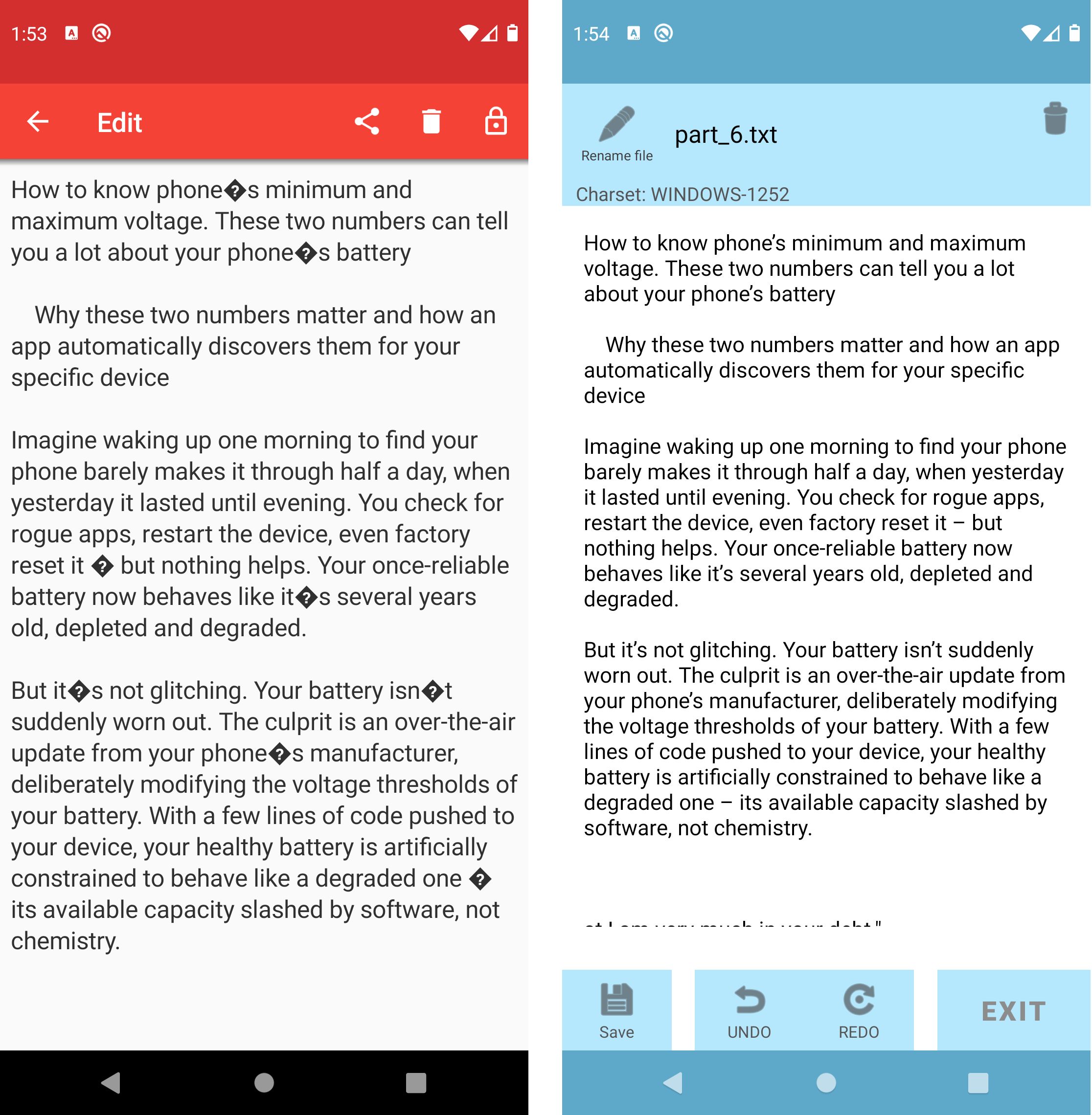
Android apps typically assume the file is encoded in UTF-8. No problems if you create your TXT files in Linux or Android. However, in reality the TXT file may be created in Windows (ANSI-1251 encoding) or MacOS (MacOS Roman encoding), or some other encoding (UTF-16, DOS-866, OEM-852, etc). If the app blindly assumes all files are encoded as UTF-8, user gets an encoding mismatch, and instead of readable content user gets undecipherable hieroglyphs. One may still get a readable enough text if it is written in Latin characters, but character encoding issues become visible anyway:
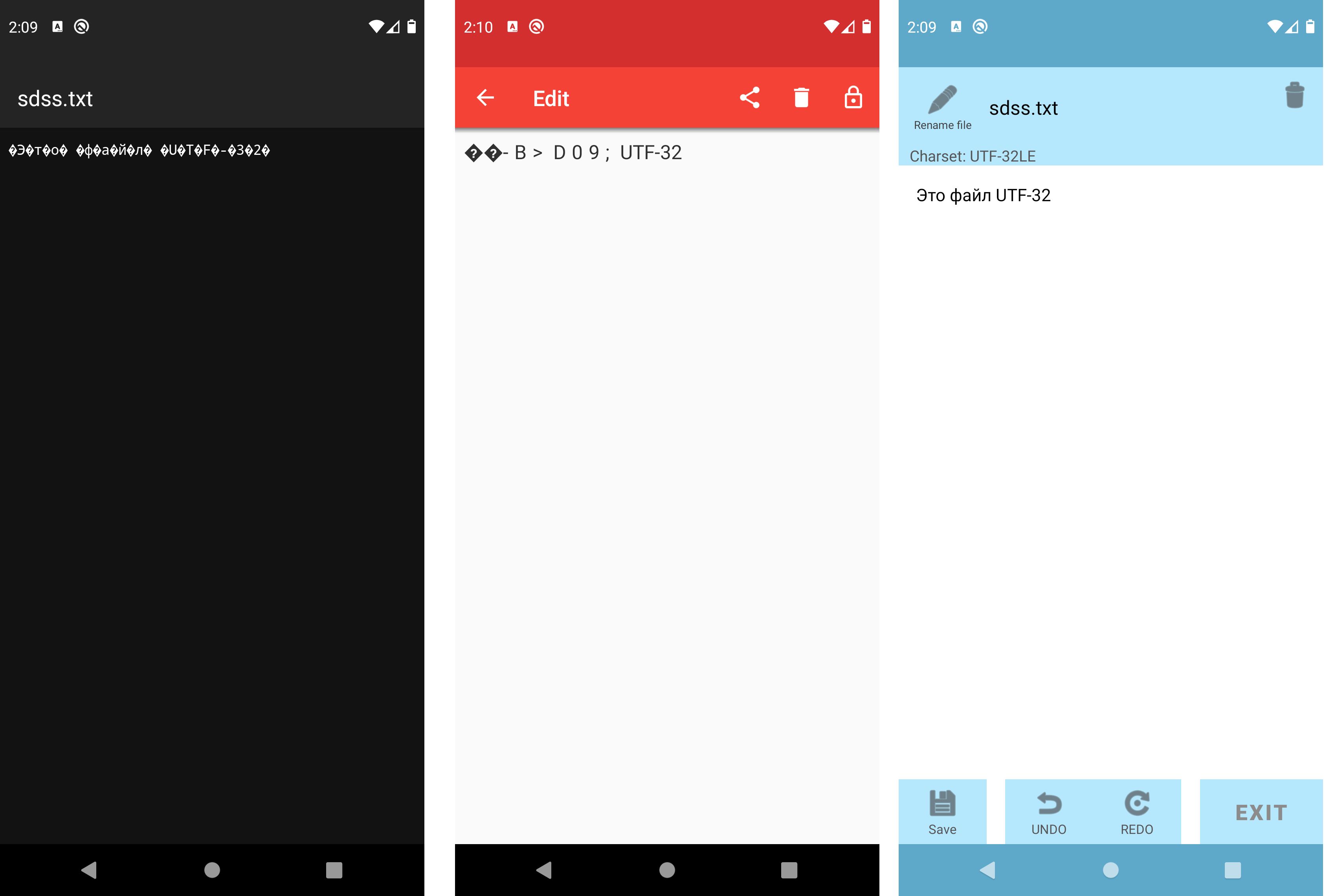
Far worse is when user attempts to open a file with a non-Latin text via an app that does not support character encoding, the text becomes unreadable. Here is one file encoded in UTF-32, which contains a single “This file is UTF-32” sentence in Cyrillic. This file was opened in Android’s built-in HTML viewer, third-party note taking app, and TeXeTeScribe:
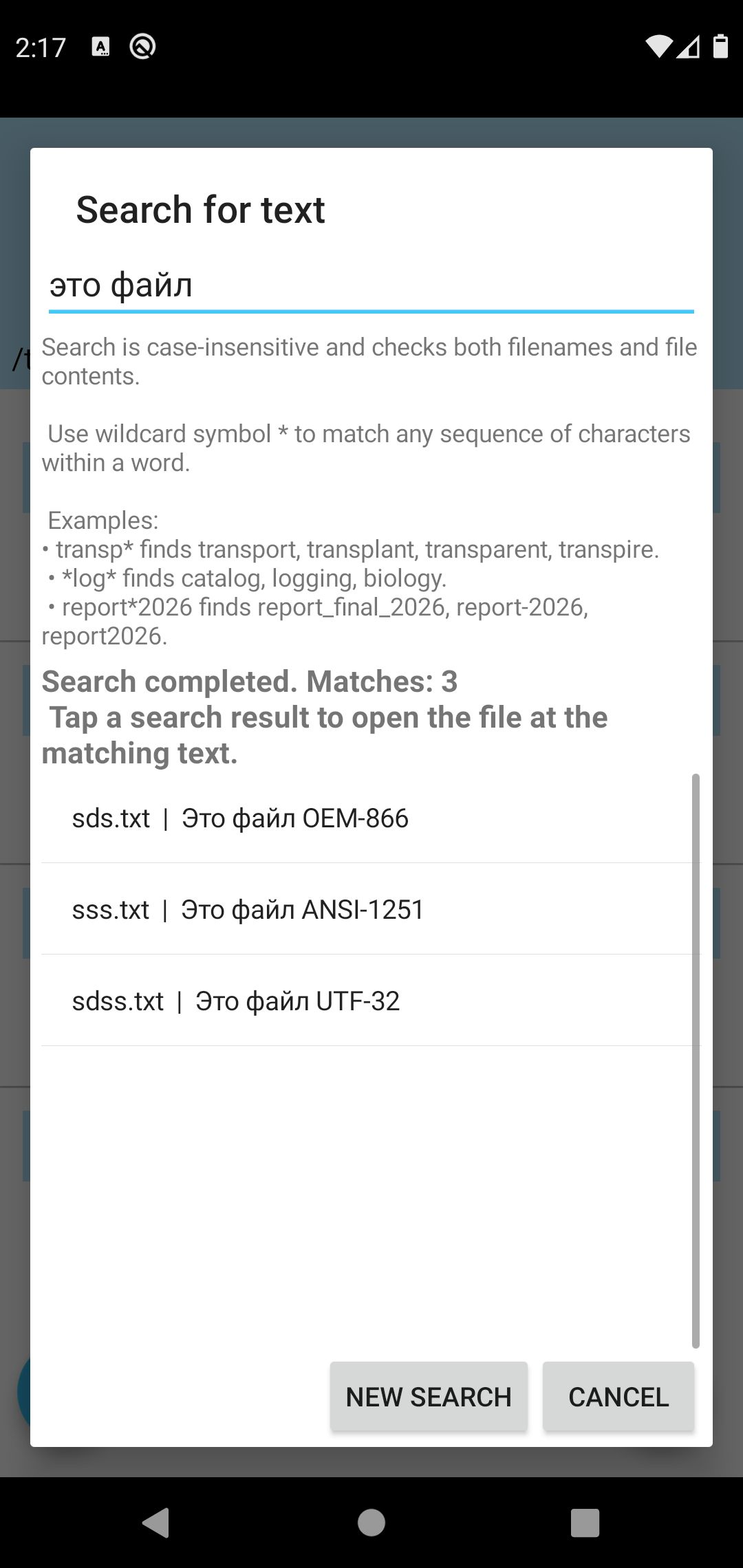
Naturally, the search has to correctly handle files with character encoding different of UTF-8. This is particularly relevant for multilingual notes created over the years. A folder containing English, Ukrainian, Russian, German, and documents in other languages can easily contain files created on different hardware, in different operation systems, by different programs. But that should not be user’s problem, he should get a list of readable search results.
Since the TeXeTeScribe already has encoding-detection functionality, so there is no need to invent another mechanism. The search operation uses the existing character encoding detector’s code to determine how the file should be decoded before examining its text.
A search routine that compares raw bytes without accounting for encoding can fail to find text, leading to false negative search result. Using the detected character set allows the application to decode the document and then apply the search query. The search therefore works with text rather than with an arbitrary collection of hexadecimal values.
Encoding detection is not magic, naturally. Some files contain too little information to establish their encoding with absolute certainty, and certain legacy encodings can produce ambiguous results. However, using the existing detector and its fallback logic is considerably more reliable than blindly declaring every document as UTF-8.
Keeping user interface snappy for hundreds of files and Storage Access Framework which slows the file access
The next problem was performance. A search function that works perfectly for ten small files is not practically suitable if it freezes the application when presented with a folder of several hundred TXT files.
There is no silver bullet for escaping Android Storage Access Framework, however, app has received several tricks to work faster despite the file access slowness introduced by Storage Access Framework. The TeXeTeScribe note taking app is now 2.3 times faster. Early versions of the app made its UI responsive after about 18 seconds, while newer versions manage to keep the time under 8 seconds, according to test results highlighted in the article about app’s optimization.
Similar approach was utilized to keep the app’s UI responsive while the search is performed. The search operation runs in the background using the application's existing executor. This allows the user to be able to interrupt the search while it is in progress.
The background worker performs the time-consuming operations: obtaining the files, opening their streams, detecting encodings, reading the contents, and identifying matches. The main thread remains responsible for updating the interface and displaying the results.
Results are delivered to the interface through the main-thread handler. Instead of rebuilding the result list after every individual match, the application publishes results in batches. This reduces unnecessary interface updates and keeps the dialog responsive even when a search produces numerous matches.
The files are processed individually rather than loading the entire folder into RAM memory. There is no practical reason to keep hundreds of complete documents in RAM when the application only needs to inspect them and retain the matching information. This is particularly important for larger files and Android devices with lower amount of RAM.
Stop means stop
A search operation should not feel as a burden if some mistake was allowed. If the user enters an excessively broad expression, discovers a mistake, or finds the required information before the application has finished examining every file, the operation should be interruptible.
The Stop button sets a cancellation flag that the background worker checks while processing files and reading their contents. Once the worker detects the request, it exits the search loop instead of continuing to examine documents that are no longer needed.
This is cooperative cancellation rather than forceful thread termination. Avoiding abrupt killing of the search operation allows to not leave resources in an undesirable state. Checking a stop flag at appropriate points provides a controlled way to finish the current operation.
The existing results are retained after stopping, allowing the user to inspect everything discovered before he issued the cancellation request. The Stop button can then become New Search button, allowing a different expression to be entered.
Cancel button closes the dialog and requests an active search stop.
The opening. The exact occurrence
Now comes the requirement that initially appeared more complicated than the rest: navigating directly to the matching text.
Finding a file with matching content is useful. But leaving the user to manually scroll several hundreds or thousand lines of text trying to spot the required word would be an example of a bad UX. And, since the user would still have to locate the matching passage manually, it rather defeats the purpose of the search function.Fortunately, Android already provides most of the required functionality through its standard android.widget.EditText class that is utilized by the app. The search routine records the character position of each match while reading the document. When the user taps on a result, the application opens the corresponding file and passes the filename, folder URI, match position, and match length.
After the document has been loaded, EditText can use setSelection() to select the matching text. The application also requests focus and scroll the editor to the line containing that selection.
There is one detail that may ruin this fest of user friendliness: the search routine and the editor must calculate positions in the same way. The search reads the document line by line, while EditActivity reconstructs its displayed text by appending newline characters after the lines. Consequently, the search position must account for those newline characters as well.
The position is a character offset in the decoded Java string, not a byte offset in the original file. For example if a UTF-8 document contains non-ASCII characters, a single character can occupy multiple bytes. Passing a raw byte position to EditText would place the selection at an incorrect location.
Once the position has been calculated correctly, the rest is remarkably simple. The editor loads the document, retrieves the search position from the intent, selects the matching text, and scrolls to the corresponding line.
A result
The search dialog displays matches in a scrollable list. Each entry identifies the filename and shows the matching text, allowing the user to distinguish between several occurrences without opening every document individually.
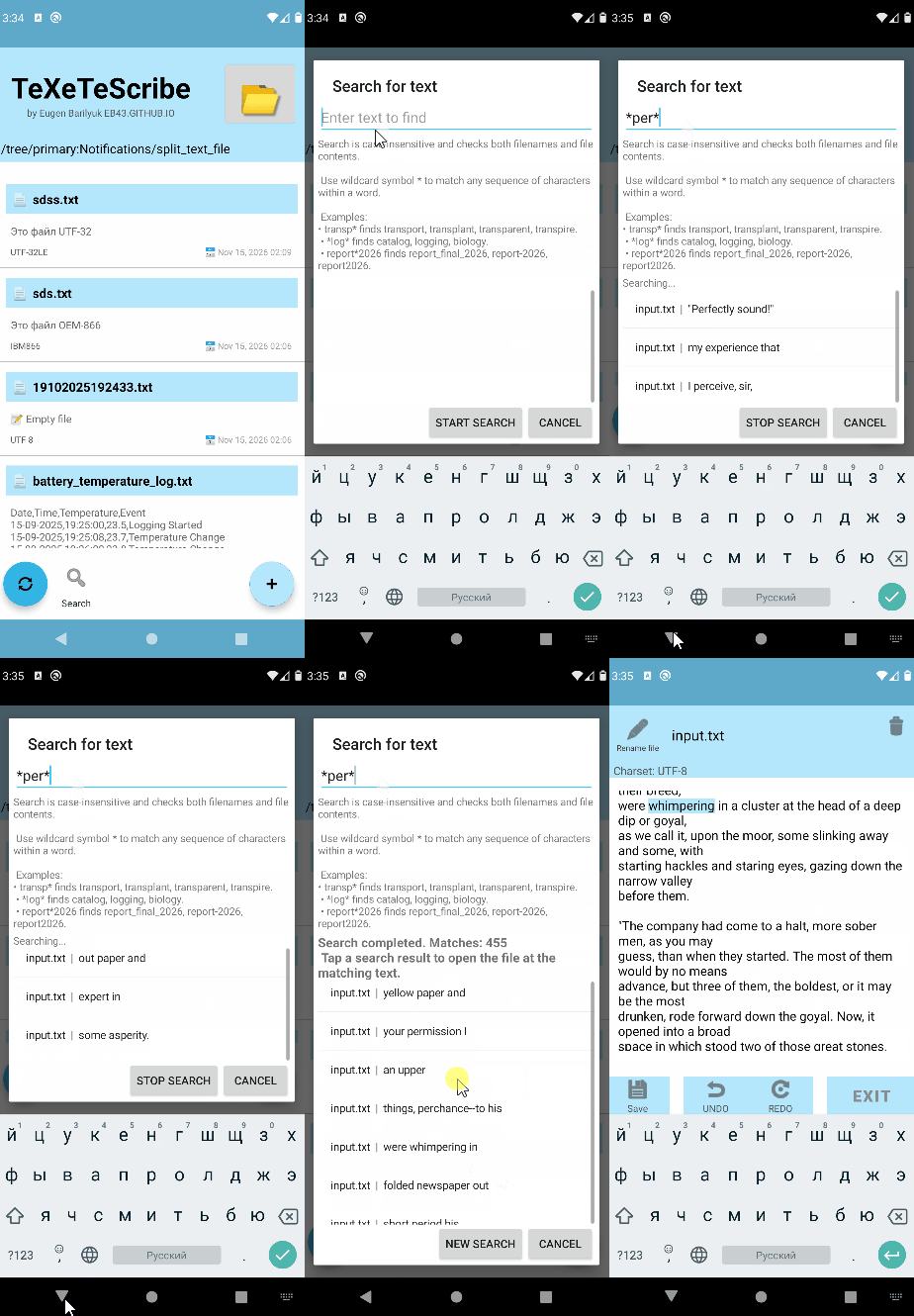
Long matching lines are visually constrained so that one unusually verbose paragraph does not occupy the entire dialog. The full document remains unchanged; only the presentation of the result is limited.
Taping on a search result opens the corresponding file, and a content automatically navigates to the matching occurrence.
To indicate the existence of search results beyond the visible list of entries a permanent scrollbar was introduced. This component was reinvented because default Android scroll bars have a nasty habit to disappear. The default scroll bar is not visible before user starts scrolling the list. But how a user would know he can scroll the list if nothing indicates that possibility? User may simply think that he sees all results found, missing other results because there was no scroll indicator. Additionally, a number of total matches found is displayed above the search result list.
So, now, instead of remembering the filename, the date of file creation, or the exact location of a particular paragraph, the user only needs to remember a word or part of it. TeXeTeScribe takes care of the rest, while the microSD card can continue doing what it was purchased for: preventing file loss when smartphone stops booting.
Where to download TeXeTeScribe app
Whenever you find this app suitable for your tasks, feel free to download it from its repo on Github https://github.com/Eb43/txtnotes/releases/latest or from F-Droid app store  .
App is completely free to use, has no ads and tries to keep notes and thought out of a vendorlock prison.