

How to make a Windows laptop to turn off at 1% instead of 5% default critical battery level
Despite 0% battery charge level still means approximately 30% of energy is actually left unused in the battery due to manufacturers hide it away for longevity, Windows is configured to be even more frugal. By default, the operating system sets the critical battery discharge level at 5%. And that is more than just some minor number that can be ignored. This number can disrupt your workflow.
When a laptop reaches the critical battery level state of charge, Windows shows a notification popup while launching the shutdown sequence (or whatever option - sleep or hibernation - was configured). The user can’t do anything - after 30-40 seconds the laptop will turn itself off without asking for permission.

Exactly that happened recently during the work on text for a new article and user was so engaged that he didn’t notice the moment when the laptop discharged to 5%. Out of nowhere a notification popup appeared, and before it could even be processed, the laptop shut itself down. User immediately hit the power button, and the computer booted normally. But it turned out that Windows completely disrupted user’s workflow by closing all opened apps since the system was configured for shutdown. The work process had to be re-launched from scratch. All of that happened while the laptop continued to run on battery, and it had worked for about an hour before the charge level indicator dropped from 5% to 1% charge and continued running smoothly.
Immediately, the question arose: why did the computer turn itself off while having plenty of battery charge left? Windows hides relevant option under the Power Options panel (named Electrical supply in other interface languages). But when tried to lower the critical battery level from 5% to 1%, Windows did not allow that - it stubbornly reverted the number back.
But there is a way around it - buried in the power management settings.
Practical implementation
Do not modify the critical battery charge level if your laptop has worn out battery. Battery charge percentage is an imaginary estimator that is not connected to the real state of charge of the battery. Lowering the critical battery charge level on a laptop with a worn-out battery can cause abrupt shutdowns and data loss, because Windows may report enough charge left while the battery is already depleted. And therefore fail to initiate the proper shutdown sequence.
To override this limitation, the configuration must be adjusted directly through the system’s power management backend using PowerShell.
Before starting, make sure that:
- The script is executed with Administrator privileges. Without elevated rights, Windows will silently ignore any configuration attempt.
- The system has been running on battery power at least once after login. Otherwise, some battery-related GUIDs may not be initialized in the registry.
- Any custom power plan currently active remains active during script execution. The command modifies only the scheme that is currently in use.
Download the PowerShell file set_critical_battery_to_1percent.ps1 or copy its content into a file.
Click here to see the set_critical_battery_to_1percent.ps1 content.
# set_critical_battery_to_1percent.ps1
# Run as Administrator in PowerShell

If (-not ([bool] (New-Object Security.Principal.WindowsPrincipal([Security.Principal.WindowsIdentity]::GetCurrent())).IsInRole([Security.Principal.WindowsBuiltInRole]::Administrator))) {
    Write-Error "Run this script as Administrator."
    exit 2
}

Write-Host "=========================================================="
Write-Host "Setting actual critical battery LEVEL to 1% ..."
Write-Host "=========================================================="
Write-Host ""

$raw = powercfg /getactivescheme 2>&1
$guidMatch = [regex]::Match($raw -join "`n", '([0-9A-Fa-f]{8}-[0-9A-Fa-f]{4}-[0-9A-Fa-f]{4}-[0-9A-Fa-f]{4}-[0-9A-Fa-f]{12})')
if (-not $guidMatch.Success) {
    Write-Error "Failed to extract GUID."
    exit 3
}
$guid = $guidMatch.Groups[1].Value
Write-Host "Active power scheme GUID: $guid"

# The actual setting for percentage threshold:
# SUB_BATTERY = e73a048d-bf27-4f12-9731-8b2076e8891f
# BATLEVELCRIT = 8183ba9a-e910-48da-8769-14ae6dc1170a

powercfg /setdcvalueindex $guid SUB_BATTERY BATLEVELCRIT 1
if ($LASTEXITCODE -ne 0) {
    Write-Error "Failed to set critical battery LEVEL."
    exit 4
}

powercfg /setactive $guid
Write-Host "`nVerification - current setting for critical level:"
Write-Host "----------------------------------------------------------"
powercfg /query $guid SUB_BATTERY BATLEVELCRIT
Write-Host "----------------------------------------------------------"
Write-Host "`nIf DC shows 1, the level is successfully set to 1%."
Place it in any folder, for example C:\temporary_downloads\. Then run the following command in PowerShell (opened as Administrator):
cd C:\temporary_downloads powershell -NoProfile -ExecutionPolicy Bypass -File .\set_critical_battery_to_1percent.ps1
The script performs several automated actions in sequence:
- Checks if PowerShell is running with Administrator privileges. If not, it terminates with an error message.
- Retrieves the active power scheme identifier (GUID) using
powercfg /getactivescheme. - Applies a new value to the system parameter that defines the critical battery threshold (
BATLEVELCRIT) within the battery management subgroup (SUB_BATTERY). It effectively means: in the active power scheme with identifier$guid, under the "Battery" subgroup (SUB_BATTERY), set the "Critical Battery Level" (BATLEVELCRIT) for DC mode (battery power) to 1%. - Reactivates the power scheme to ensure the change is applied instantly.
- Prints the current setting for verification by running
powercfg /queryon the same GUID.
After successful execution, the output should resemble the following:
==========================================================
Setting actual critical battery LEVEL to 1% ...
==========================================================
Active power scheme GUID:
Verification - current setting for critical level:
----------------------------------------------------------
Power Setting Index: DC Setting Index: 1
----------------------------------------------------------
If DC shows 1, the level is successfully set to 1%.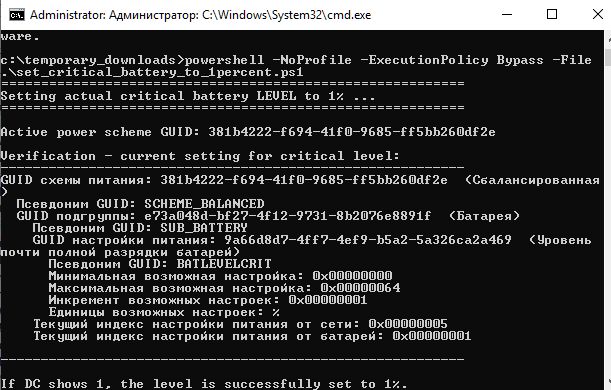
You can see on the screenshot the text Текущий индекс настройки питания от батарей: 0x00000001. That’s Russian for “Current DC setting index: 1”.
If the command output shows DC Setting Index: 1, Windows will now treat 1% as the new critical battery threshold. However, some laptop manufacturers implement firmware-level protections in the Embedded Controller that ignore or override values below 3%. In such cases, Windows may still perform a forced shutdown earlier than expected. This is not a limitation of the script but of the hardware design itself.
After applying the modification, it is recommended to verify new setting on practice. Disconnect the power adapter and observe the battery indicator as it discharges. When it reaches 1%, the system should now trigger the critical battery notification at that level. The laptop will then shut down, hibernate, or sleep according to the configuration set in Power Options.
To restore the default value, modify the following line in PowerShell by changing the number 1 to 5:
powercfg /setdcvalueindex $guid SUB_BATTERY BATLEVELCRIT 1
Save the PowerShell script and run it as Administrator. This will return the critical threshold to its factory default of 5%, reinstating Windows’ standard behavior.
Conclusion
By adjusting the critical battery charge level setting to 1%, the laptop gains an additional 15–45 minutes of usable time before shutdown, depending on battery condition and system load. But more important that this small configuration change means you really have to charge to continue work. No more workflow disruption just to re-launch the laptop and continue working while battery reaches 1%.
Since the powercfg subcommands used (/getactivescheme, /setdcvalueindex, /setactive, /query) are unchanged since Windows Vista, the script should work perfectly in any Windows, including Windows 11. The script was practically tested in Windows 10.