

How to stop manually typing dates in Excel: Automating workday timetable update of Excel spreadsheet daily performance tracker
We’ve all been there - sitting in front of a glowing screen at 8:55 AM, coffee in hand, performing the same ritualistic setup of daily performance tracker. It feels productive for exactly three seconds, and then it feels like a heavy, invisible tax on your creativity. Filling the today’s date manually eventually leads to errors like mistyped "Feb 2" instead "Feb 22", ruining the accuracy of a master tracking sheet.
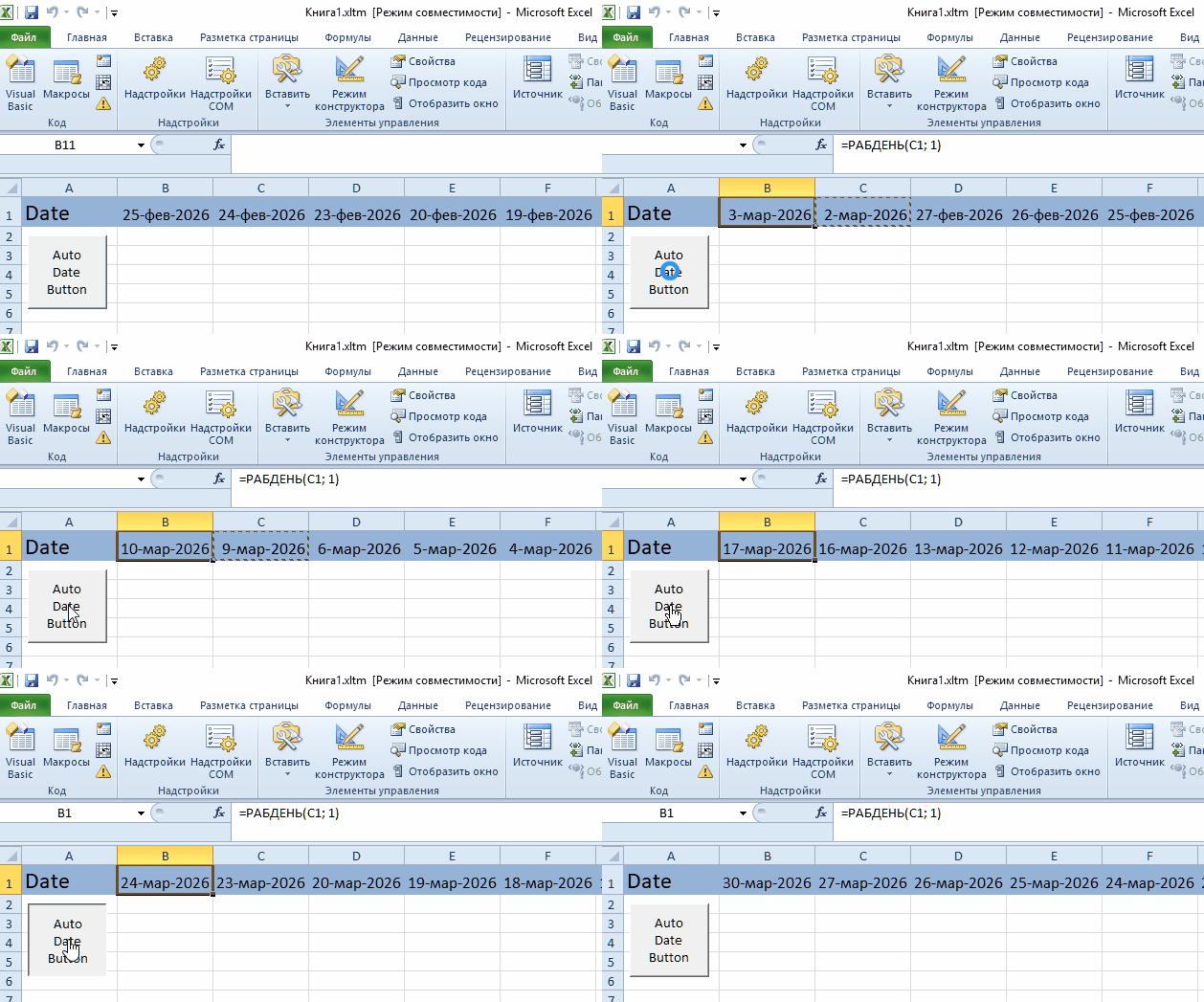
Luckily, Microsoft Excel has functionality to automate current date insertion when a new row for a fresh workday is added. The solution allows to avoid mistyped dates, mistyped weekdays dates as work dates, and supports holidays.
Whether you are a project manager or a lab tech, this is for anyone who wants their data to respect the rhythm of the workweek.
Where Excel can help you start the work day: 5 real-world scenarios
We often underestimate the "micro-stresses" of manual repetitive entry. It is monotone and boring, leading to errors and that tiny, nagging doubt in the back of your mind wondering if you correctly added a new piece of information in a sea of cells. Automating, even partially, workday routine protects data's integrity and your own peace of mind. Let’s look at a few situations where this small shift in logic makes a world of difference.
1. The high-stakes of content agency
Imagine you’re managing a fleet of twenty freelance writers. Every single morning, you insert a new column to track their daily productivity. If you miss a day or accidentally label a column with an incorrect timestamp, the work rhythm is ruined and that may trigger someone's paycheck problems.
By automating the date logic at column insertion, you ensure that even if you’re logging in half-asleep from a hotel lobby, the timeline remains unbroken.
2. The lab researcher’s precise timetracker
Researchers typically daily track the parameters of some process, regardless of the discipline. An electronics engineer may be daily tracking the degradation of the designed system during extensive lifespan testing. On weekends, the lab is locked, and no measurements taken. Their Excel sheet may be a mess of manual dates where they constantly had to jump over Saturdays and Sundays. One wrong date meant the parameter curve analysis was scientifically invalid.
3. The industrial quality control log
Imagine a bustling manufacturing plant floor where heavy machinery hums 24 hours a day, but the Quality Control (QC) office only operates Monday through Friday. Every morning, the QC lead opens a massive spreadsheet that tracks batch rejection rates. Her first task of the day is to insert a new column for a new workday to record the stats from production run.
In this high-pressure environment, QC lead doesn't have time to check a calendar. If QC lead manually types the date for Saturday by mistake, the automated charts that report to the plant manager will show a "zero-production" dip that triggers a false alarm.
4. The freelance project milestone tracker
Consider a freelance web developer managing three complex client builds simultaneously. He uses a "Daily Progress Tracker" where each column represents a day of billable work. He inserts a new column every morning to log his hours and the specific modules he completed. Since he doesn't work weekends, his timeline needs to jump from Friday to Monday automatically.
For this freelancer, a "date drift" is a real threat to his invoicing. If he manually enters dates and accidentally scrambles the dates, his clients might raise questions. For example if the freelancer accidentally sets a date that corresponds to Saturday, his clients might ask why they are being billed for a weekend. Alternatively, if he loses track of and labels a Tuesday as a Monday, his entire project timeline shifts, making him look disorganized or, worse, late on a milestone.
5. The biology research
In a medical laboratory, a research team is tracking the stability of a new compound. The protocol requires a daily check-in on the sample's appearance. The researcher maintains a tracker where Column B is always the "Current Observation Day".
The technical challenge here is that putting incorrect dates by accident may ruin the research integrity’
6. The coffee boutique inventory tracking
Small business owners, are often execute the responsibility of data analysts. For example, a business owner who runs a boutique coffee roastery, tracks his inventory of green beans daily. Every time she roasts a new batch, she inserts a new data cell for that day to record the weight used. Since the roastery is a small operation, they don't roast on weekends or during major holidays like New Year's Day.
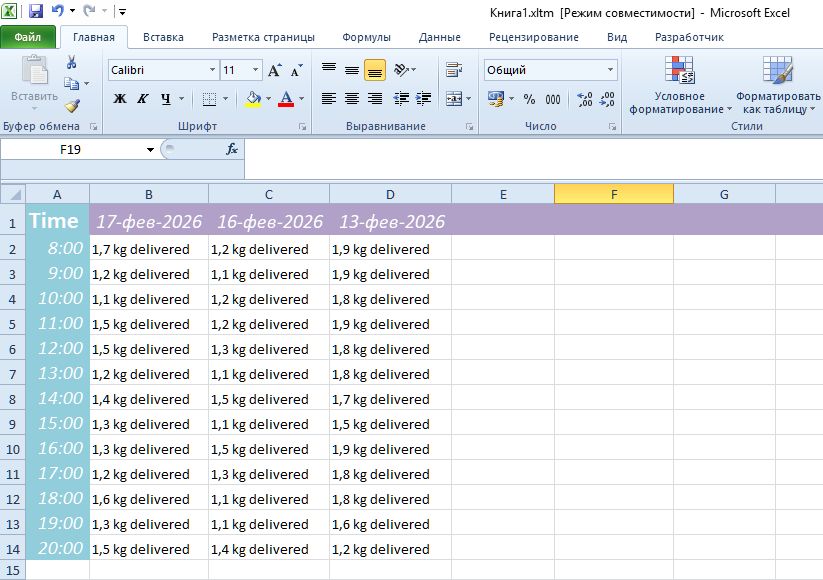
For small businesses a spreadsheet may be its lifeline; it tells when to order more stock. If dates are wrong, her calculation is wrong. If business owner manually types a date during a busy roast session, he’s likely to make a mistake.
7. The corporate attendance tracker
In a large department, tracking daily attendance or "Daily Stand-up" notes is a grind. For an admin of this spreadsheet, manually typing the current date every morning is a repetitive strain injury waiting to happen. More importantly, it's boring.
8. The financial trader's journal
Markets don't trade on Saturdays. If you’re tracking your daily P&L (Profit and Loss), your timeline needs to skip the weekend entirely. One may us a simple +1 formula, only to find his profit charts looking "flat" every weekend because there was no data.
Implementing a holiday-aware workday formula means charts stay crisp and relevant. It gives the technical edge he needed to analyze the financial performance accurately.
The problem: headache of manually adding the current date each day
The goal is simple: you have a row or column of dates. Let’s say it is a row of dates (Row 1). Every time you start a new day of tracking, you insert a new column as the most left column (column A). This shifts the old column A to Column B. Cell A1 is always "Today" work day. Cell B1 is "Yesterday" work day.
In the examples below the column B was set as today and column C – as yesterday. The column A contains time of the record or its ID.
When a new day starts, you select Column A and click "Insert". You want to fill the new A1 with today’s date, but only if it’s a workday. If it’s a weekend, you want the date to jump to the next available Monday.
Most people try to use TODAY() function, but that leads to a "Volatility Trap".
Why the obvious "IF" condition formula fails
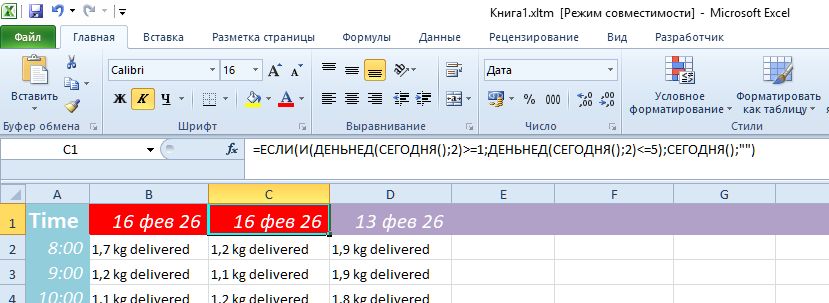
You might have tried using this formula:
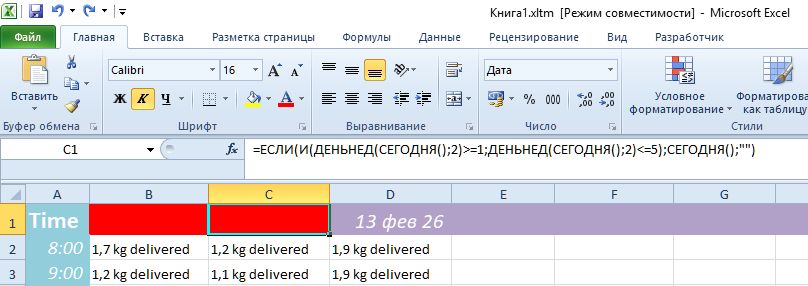
=IF(AND(WEEKDAY(TODAY(), 2)>=1, WEEKDAY(TODAY(), 2)<=5), TODAY(), "")On the surface, it looks smart. It checks if today is a weekday (Monday-Friday) and returns today's date. But there are three major flaws that will break this mentally ideal formula:
- The Volatility Trap: The
TODAY()function is "volatile". This means if you open the sheet tomorrow, every cell containing this formula will update to tomorrow's date. Your historical data will vanish! - The Weekend Blindness: If you are preparing your sheet on a Sunday for the week ahead, this formula will return a blank string (
""), leaving you with an empty header. - No "Chain" Logic: It doesn't look at what happened yesterday. It doesn't know that if C1 says "Friday", B1 should say "Monday".
The solution for a robust timeline
Instead of TODAY(), we use the WORKDAY function. This Excel function is designed to "jump" over weekends. In cell B1, enter:
=IF(AND(ISNUMBER(C1), ABS(C1-TODAY())<7, COUNTIF(1:1, C1)>0), WORKDAY(C1, 1), "")The formula above always looks at the date that was just "Today" work day to find "Tomorrow" work day.
Why this is technically superior:
ISNUMBER(C1): Makes sure C1 is actually a date, not a random word.ABS(C1-TODAY())<7: A safety check. It only calculates a date if C1 is within a week of today, preventing the formula from running on empty columns far to the right.WORKDAY(C1, 1): This is the heart of the solution. It looks at the date in C1 and adds one date of a workday, automatically skipping Saturday and Sunday.
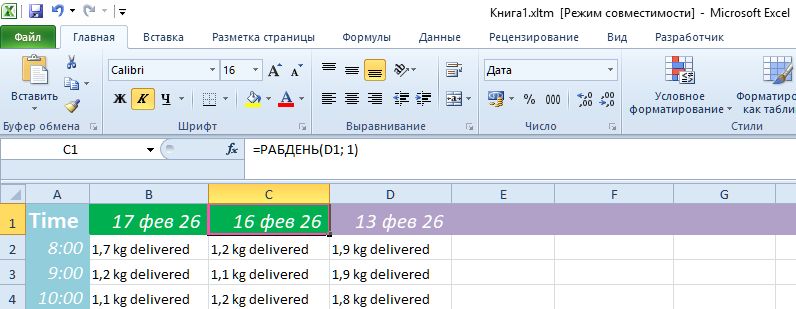
Adding holiday support
To make the timeline tracker truly robust, you want to skip Christmas, New Year, and other statutory national holidays. Create a list of these dates in an unused range of cells (let's say cells range from Z1 to Z10) and name that range "Holidays". Update your formula to:
=WORKDAY(C1, 1, $Z$1:$Z$10)WORKDAY(C1, 1)
One-click automation with VBA script
If you want to feel like a pro, you can automate the entire process: inserting the column, moving the formula, and formatting. All is executed on a button press.
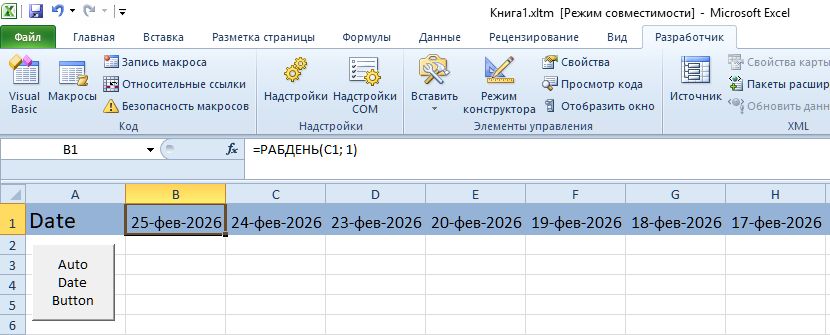 Here is the code to use daily. It's written to be robust even for beginners.
In Excel, press Alt + F11 in Excel to open the VBA editor. In the Project Explorer, find your sheet (e.g., Sheet1) under VBAProject. Double-click the sheet and paste the above code into the code window. Close the VBA editor. Save your workbook as a Macro-Enabled Workbook (.xlsm).
Sub InsertNewWorkdayColumn()
    ' 1. Insert a new column at Column B
    Columns("B:B").Insert Shift:=xlToRight

    ' 2. Place the WORKDAY formula in cell B1
    ' It looks at C1 (the previous most recent date) and adds 1 workday
    Range("B1").Formula = "=WORKDAY(C1, 1)"

    ' 3. Optional: Copy formatting from the old B1 (now C1) to the new B1
    Range("C1").Copy
    Range("B1").PasteSpecial Paste:=xlPasteFormats
    Application.CutCopyMode = False

    ' 4. Select B1 so you're ready to work
    Range("B1").Select
End Sub
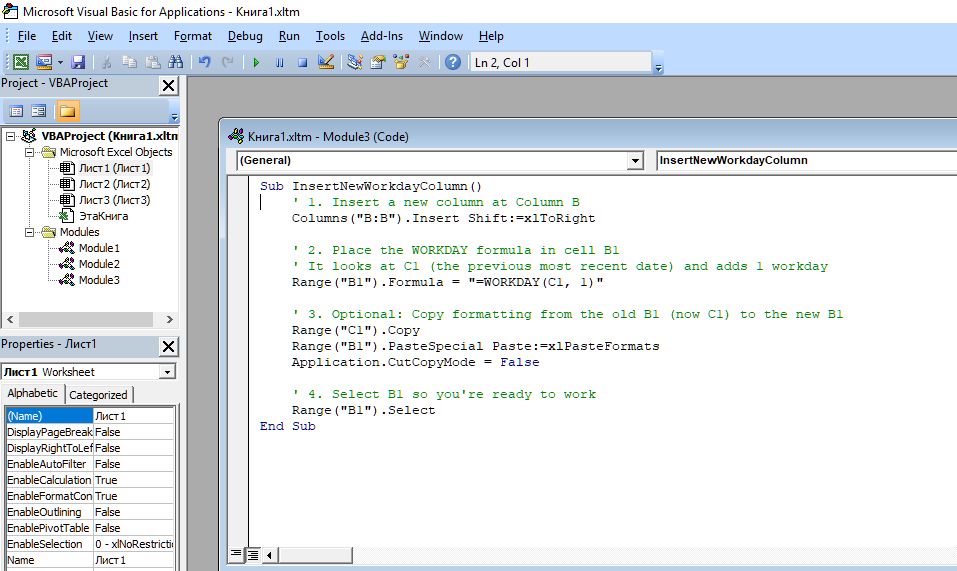
To add this VBA script: Press Alt + F11, go to Insert > Module, paste the code, and save as a .xlsm file.
To get a button for column auto insert and automatic filling of the date, in Excel go to the Developer Tab. If you don't see this tab, right-click any ribbon tab and select "Customize the Ribbon", and select the Developer tab to enable it.
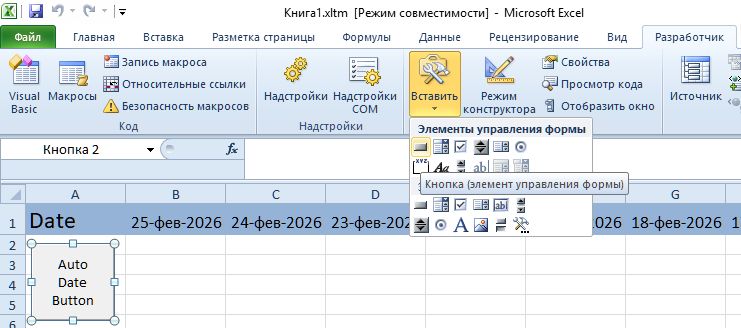
Next, insert control. Click Insert button on the Ribbon and choose the Button icon under "Form Controls". Assign Macro: Draw the button on your sheet. A window will pop up automatically, and you have to select your previously added InsertNewWorkdayColumn script. Finally, click OK.
Additional checks:
- File must be .xlsm with macros enabled
- Macro must sit in a standard module, not inside the sheet or ThisWorkbook object. Otherwise button assignment sometimes fails or triggers compilation errors.
- Remove all leading or trailing quotes that may be copied
- Additional technical checks
- WORKDAY function availability. Older installations of Microsoft Excel required the Analysis ToolPak add-in for WORKDAY. If Excel reports the formula as unknown, enable that add-in through File -> Options -> Add-ins -> Manage Excel Add-ins -> Go. Tick Analysis ToolPak.
When macros run from buttons, the active sheet may differ from what you expect. You may want to upgrade the macro to:
With ActiveSheet
    .Columns("B:B").Insert Shift:=xlToRight
    .Range("B1").Formula = "=WORKDAY(C1, 1)"
    .Range("C1").Copy
    .Range("B1").PasteSpecial Paste:=xlPasteFormats
End With
Application.CutCopyMode = False
Global compatibility: international versions of the work day date formula
Excel is a polyglot. If you or your colleagues are using Excel in another language, the formula name and the separators (commas vs. semicolons) change. Here is the quick-reference table for the formula of the work day date:
| Language | Formula for Cell B1 |
|---|---|
| English | =WORKDAY(C1, 1) |
| Russian | =РАБДЕНЬ(C1; 1) |
| French | =SERIE.JOUR.OUVRE(C1; 1) |
| German | =ARBEITSTAG(C1; 1) |
| Spanish | =DIA.LAB(C1; 1) |
To get the formula in the language you use for your Excel, you may want to read about official Excel Functions Translator add-in. https://learn.microsoft.com/en-us/answers/questions/5046333/formulas-breaking-in-different-languages.
For the VBA macro, Excel usually handles the translation automatically
Conclusion
I hope this guide helps you reclaim those few minutes of your morning. There is a profound sense of peace that comes from knowing your tools are working for you, rather than you working for them. Now, go grab that second cup of coffee - you’ve earned the time.